← Help centre
Making the site easier to read
Change the font, text size, spacing and colours to suit you. Your settings are saved to your account.
For: Everyone-
1
Where to find it
Sign in, then open the menu with your name on it (top-right) and choose Display & reading. Everything on that page changes how the site looks for you only — nobody else sees your version, and you can change it as often as you like.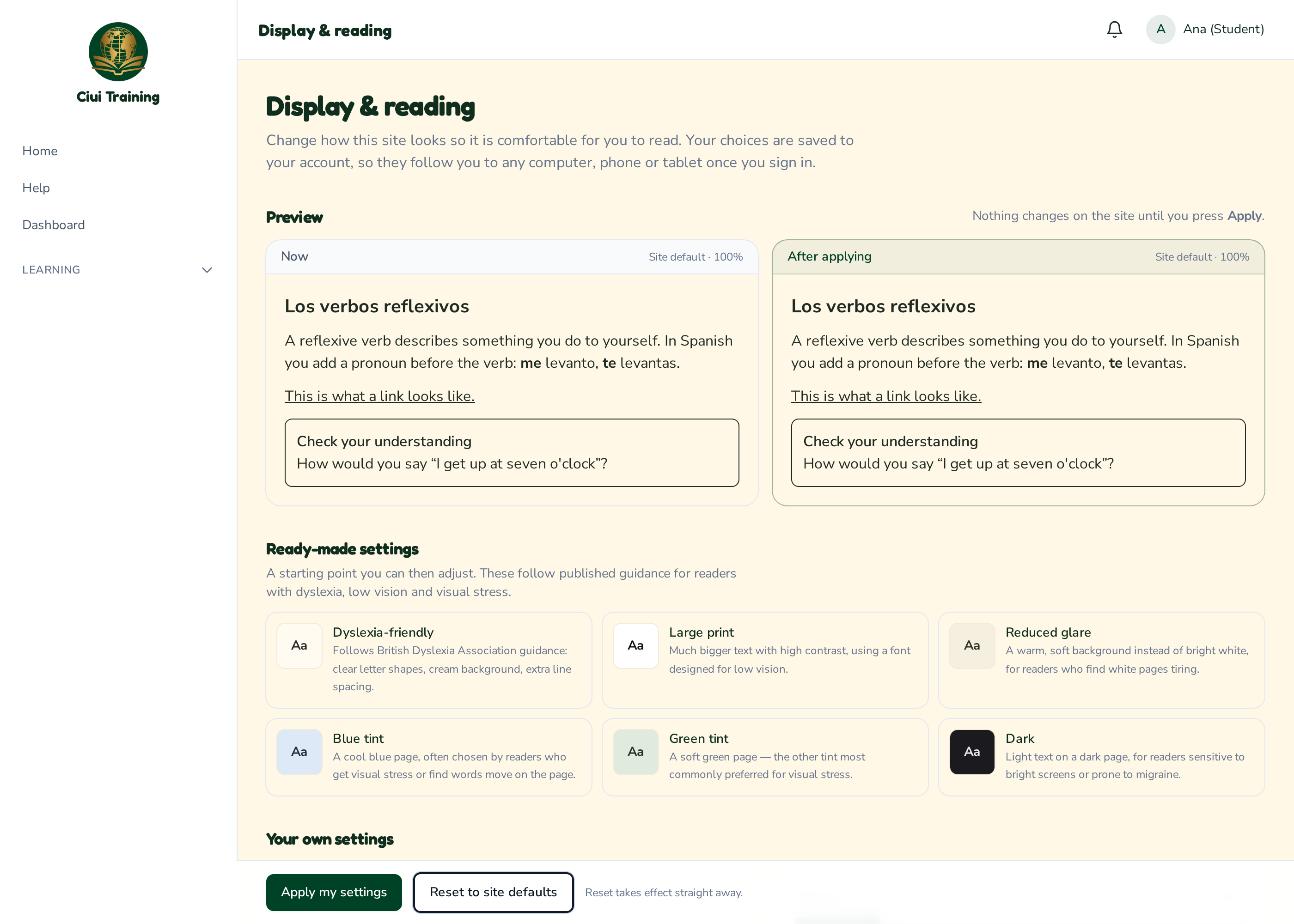
-
2
Try a ready-made setting first
The quickest way to start is Ready-made settings. Each one is a tried-and-tested combination — for example Dyslexia-friendly follows British Dyslexia Association guidance (clear letter shapes, a cream background instead of bright white, and more space between lines). Tap one and it fills in all the settings at once. You can then change any part of it. -
3
Check the preview before you commit
There are two panels at the top. The left one, Now, is how the site looks at the moment. The right one, After applying, is what you have just chosen. Compare the two and keep adjusting until the right-hand side looks comfortable. Nothing changes on the real site until you press Apply, so you can experiment freely.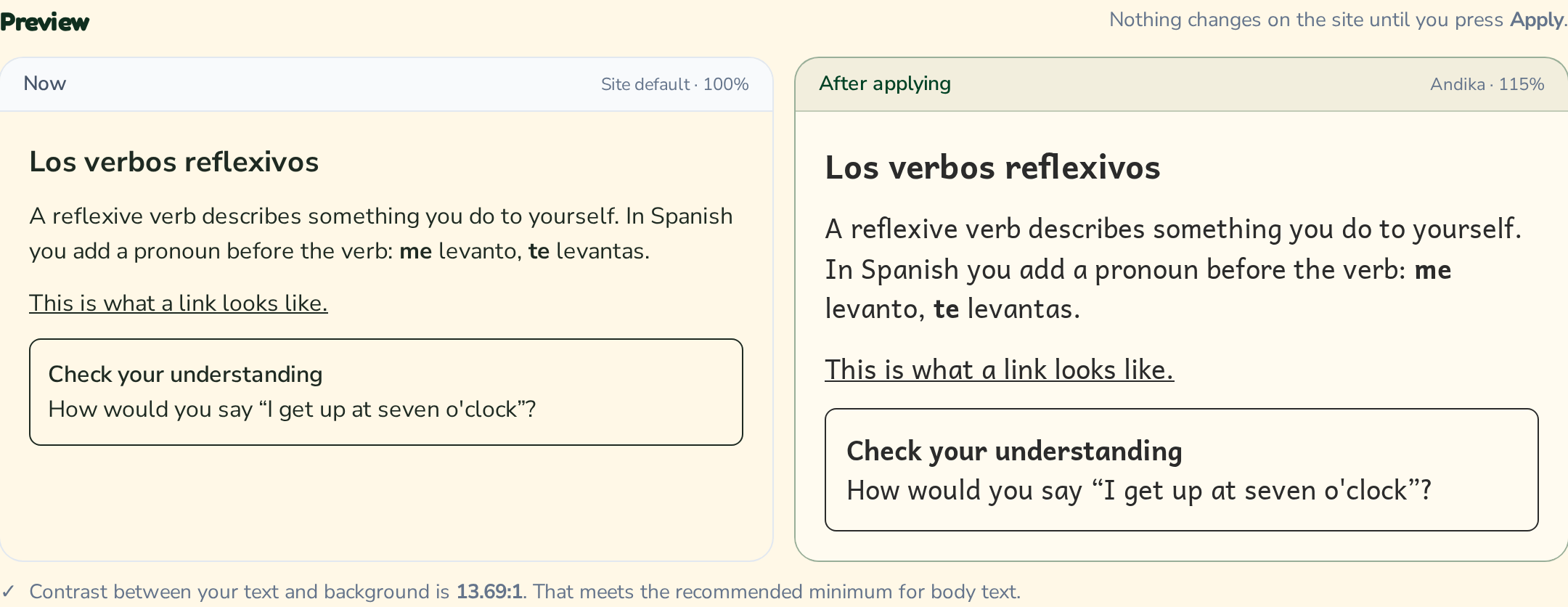
-
4
Choose your font
There are several fonts to pick from, each designed to help in a different way — for example Andika uses the letter shapes taught in school and draws b/d and p/q differently, OpenDyslexic weights letters at the bottom so they feel less likely to flip, and Atkinson Hyperlegible was made for people with low vision. The page explains what each one does as you select it. -
5
Size, spacing and colours
Use the sliders for text size and space between lines — extra line spacing helps many readers keep their place. The colour buttons set your background and text colour. The page tells you whether your two colours have enough contrast to read comfortably; you can still use them if you prefer, it is only a warning. -
6
Inside lessons
Course pages were written with their own fonts and colours. Use my font and size in lessons is switched on to start with, so lesson text appears in your font. Also use my colours in lessons is switched off to start with — that is deliberate, because some lessons use colour to show meaning, such as which Spanish words are masculine or feminine. Switch it on if you would rather have your own colours everywhere. -
7
If something goes wrong
Press Reset to site defaults and everything goes straight back to normal — you do not need to press Apply afterwards. Use it any time a combination turns out to be hard to read. Your settings are stored with your account, so they will be waiting for you next time you sign in, on any device.
Still stuck? Ask your administrator, or the person who invited you, for a hand.